
The Sequoia Forest Tool allows you to customize the visual style of the forest plot.
You can use the Theme Palette for quick color changes or open the Theme Designer for advanced customization.
Theme Palette
Six quick-access color pickers in the Theme & Styling section:
- Color 1–4 (applied to group/category encodings),
- Global background, Label color (applied to all text labels).
Open Theme Designer
Click Open Theme Designer to access advanced plot customization.
Theme Designer — full settings reference
| Setting | Controls | Notes |
|---|---|---|
| Font family | Inter, Roboto, System UI, Aptos, Poppins, Montserrat, Open Sans, Lato, Nunito, Raleway, Ubuntu, Merriweather, Lora, Noto Sans, Work Sans | Applied to all plot text |
| Header font size (px) | Group header label size | Affects Show Headers text (article 04) |
| Table text size (px) | Row label and visible column text size | — |
| Marker color | Default point fill color | Overridden by group color assignment from palette |
| Point size | Diameter of effect estimate marker | — |
| Line width | Width of the CI horizontal line | — |
| Whisker cap size | Width of CI endpoint caps | — |
| Background color | Plot background fill | Also accessible from Theme Palette |
| Axis styling | Show or Hide x-axis line, x-axis label, y-axis-line and y-axis label | _ |
Use these controls when creating cleaner report-ready visuals.
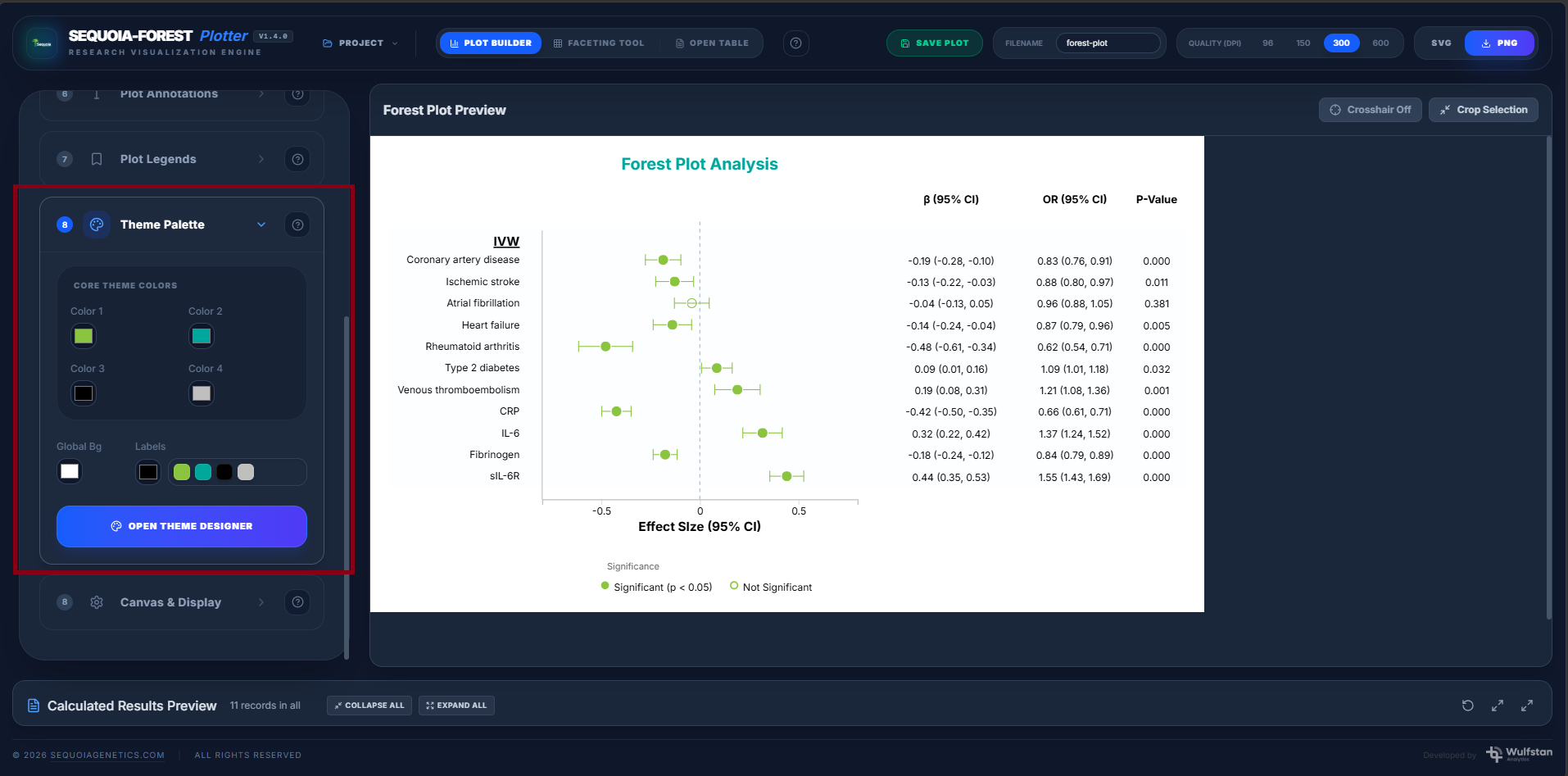
SCREENSHOT: Theme Palette and Theme Designer panels, with the default styled forest plot